 Knowledge Base
Netvisor
Thril sends your sales invoices and each day's sales to Netvisor accounting. Setting up Netvisor's API rights, cost objects and payment methods for Thril.
Netvisor is a Finnish accounting system. Connected to Thril, it gets your sales without anybody typing them in: the invoices you raise in Thril, and every day's card, cash and benefit sales as one bookkeeping voucher per venue. Your accountant books from Netvisor, and the revenue lands on the accounts and cost objects you chose. You choose which invoices go to Netvisor, and Netvisor delivers them.
Netvisor is for companies registered in Finland that trade in euros. It is set up once for the whole company, and every venue sends to the same Netvisor organisation.
Invoices and daily sales in Netvisor
- Company invoicing through Netvisor. Raise a club's or a company's monthly invoice in Thril and send it to Netvisor, which delivers it as an e-invoice, an email or a letter. Statuses and payments come back to Thril.
- Daily sales in the books. Turn on bookkeeping vouchers, and each venue's settled sales for the day post to Netvisor every night.
- Revenue split the way your accountant wants it. Give bookings, coaching, the pro shop and the café their own ledger accounts and cost objects, and lines post there by themselves. See Ledger accounts and cost objects.
Invoices in Netvisor
Sending invoices to Netvisor, customer details, payments and credit notes.
Bookkeeping vouchers and accounts
Daily sales as vouchers, ledger accounts, cost objects and the nightly send.
Before you start
You need:
- A Netvisor package with API access.
- Your company's Business ID in Thril, the same as the organisation's in Netvisor.
- Access to Netvisor's company menu, or your accountant's help, for the steps below.
Setting up Netvisor for Thril
Do these in Netvisor before you connect.
- Get the API identifiers. Under Company menu → API identifiers, find your Customer ID and Customer key.
- Grant Thril its rights. See Required API endpoint permissions.
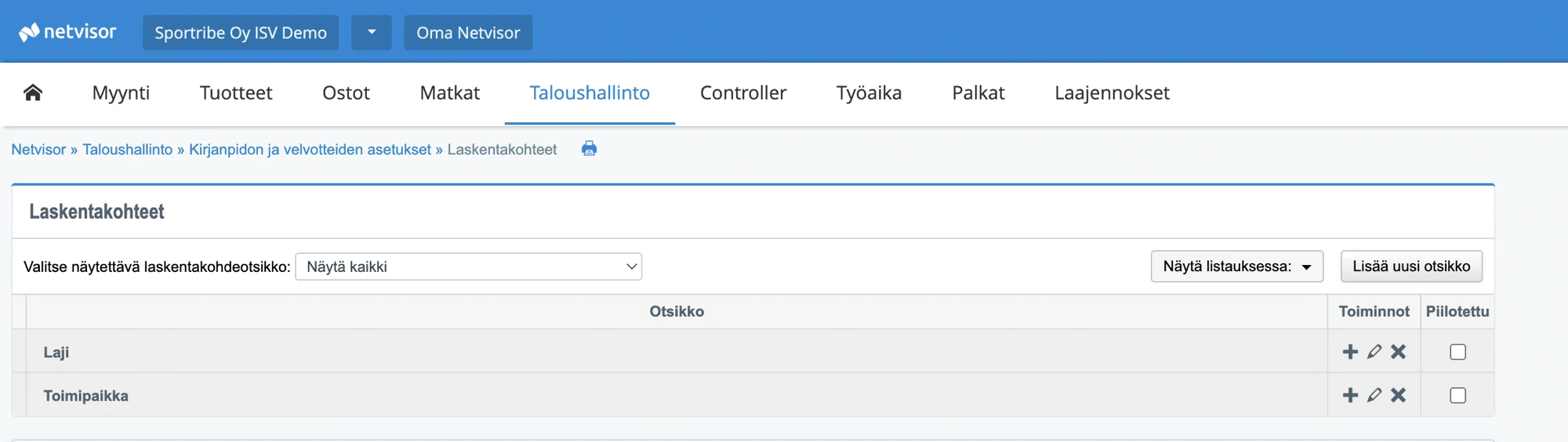
- Create the cost object headers. Under Financials → Settings → Management of cost objects (Taloushallinto → Asetukset → Laskentakohteiden hallinta), create two headers named exactly
LajiandToimipaikka. Thril fills them on every line, with the sport and the venue. - Create the payment methods. Under Sales → Basic data and settings → Payment methods, create
epassi,käteinenandpankkikortti. Payments Thril records on Netvisor invoices use them. - Decide on automatic sending. Under Sales → Invoicing settings and automatic sending, automatic sending makes Netvisor deliver the invoices it gets from Thril without you approving each one. It applies to every invoice in your Netvisor organisation. Agree on it with your accountant.
Required API endpoint permissions
Under Company menu → API resource access rights, add the Thril integration, Thril / Sportribe Oy, and grant every right it asks for. Thril uses Netvisor's interfaces for customers, products, cost objects, sales invoices, sales payments and the chart of accounts (accountlist.nv).
Bookkeeping vouchers also need the accounting interfaces: voucher types, accounting periods, the accounting ledger and vouchers (vouchertypelist.nv, accountingperiodlist.nv, accountingledger.nv, accounting.nv, accountingedit.nv and invalidatevouchers.nv).
When Netvisor refuses one of them, Thril shows the error with a link here. Grant the right Netvisor names and try again. With accountlist.nv, Thril lists your accounts to pick from.
Connecting in Thril
Under Settings → System → Integrations → Netvisor, enter the Customer ID and Customer key, switch Status to Active and select Create integration. Thril then creates its products and cost objects in Netvisor.
When you add a venue or a sport later, run Sync products and cost objects from the Actions menu. A new venue can invoice before it opens in the Thril app.
Stebby
Customers in Estonia and Latvia pay with Stebby, the employee benefit wallet. What you need from Stebby and how Stebby categories decide what employer compensation pays for.
Invoices in Netvisor
Thril invoices go to Netvisor, which numbers and delivers them, and statuses and payments come back. Recording payments, editing and crediting, and what Netvisor needs from each customer.