 Knowledge Base
Calendar
The calendar gives you a real-time view of all reservations across your resources and lets you create and manage bookings directly.
Views
Use the view controls at the top to switch between:
- Day view — all active resources shown as columns for a single date. Use the sport type filter in the toolbar to focus on one sport. Default view.
- Week view — one resource shown across a full week. Use the resource selector and week picker to navigate.
- TV view — opens a read-only display in a new browser tab, useful for a reception screen.
Color coding
Each reservation type has a distinct left-border color:
| Color | Type |
|---|---|
| Turquoise | Regular reservation made by a customer |
| Blue | Reservation created manually by your venue |
| Yellow | Recurring reservation |
| Green | Open reservation (waiting for participants) |
| Red | Service booking |
| Orange | Event reservation |
| Pink | Golf competition |
| Purple | Reservation from an authorized partner venue |
| Mint | An additional service's time on a resource, such as a sauna turn |
| Grey | Resource blocker |
| Amber | Reservation awaiting payment |
Creating a reservation
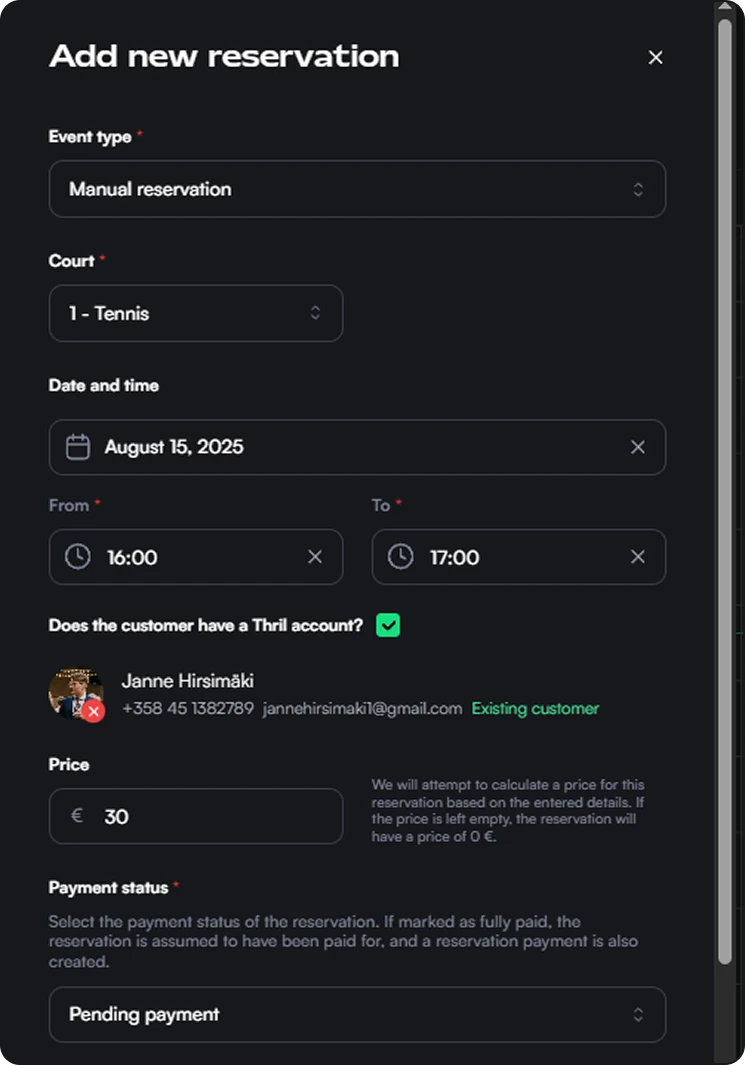
Click or drag any empty time slot in the calendar to open the new reservation form. You can also use the Add new reservation button in the sidebar.
In the form, select a resource, date and time, and customer. Pricing is calculated automatically when a matching pricing rule exists.
Read more: Reservations
To create multiple reservations in one step, enable multiselect mode from the toolbar (day view only), select the slots you want across any resources, then use the action menu that appears.
Managing existing reservations
Click any reservation card to open its details. From there you can view payment status, edit or cancel the booking, and inspect participants and payment splits.
You can also drag a reservation to a different time slot or resource. A confirmation prompt appears before the change is applied. This works for service bookings too: a booking that holds several resources shows one card per resource, and dragging a card moves the whole booking's time and swaps that card's resource only.
Daily summary
A small panel in the bottom-right corner shows the current day's reservation count, unique customer count, and overall utilisation rate. It updates automatically as data loads.
Branding
Use Thril's branding tools to shape your venue's public image, build trust, and boost bookings with a polished, professional profile.
Company profile and admin settings
Configure your company’s details and manage admin rights, ensuring secure and efficient access control for your organization in Thril.