 Knowledge Base
Memberships
Design, sell, and manage one-time passes and recurring memberships with flexible billing, benefits, booking rules, and access.
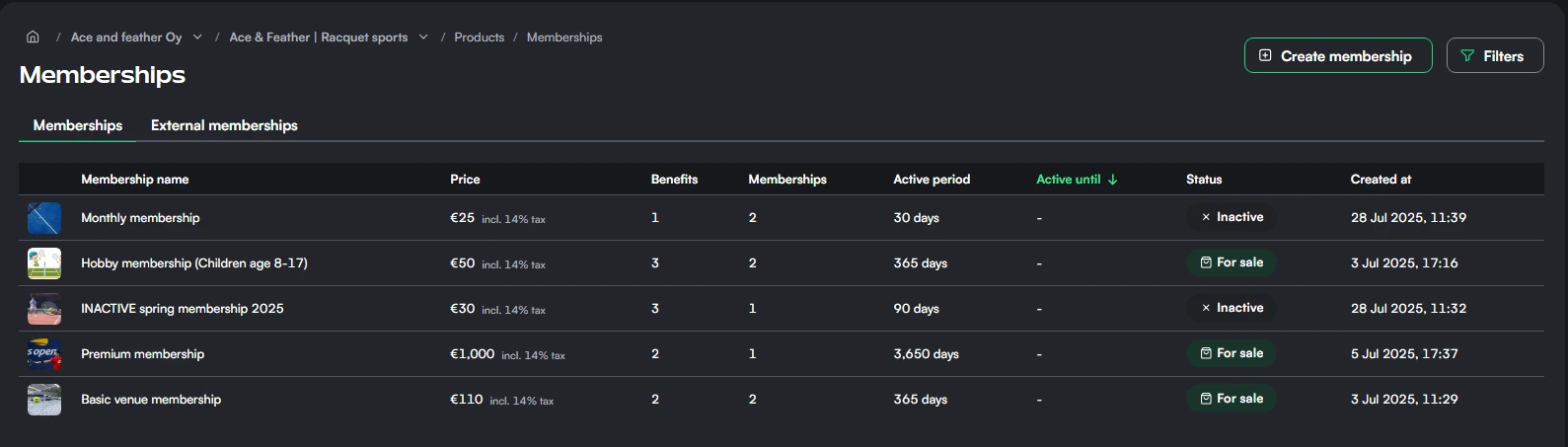
Memberships package ongoing value for regular customers. A membership can charge once or renew automatically, grant credits and session cards, adjust reservation prices and booking rights, and connect membership validity to physical access.
The guides in this section cover the membership product and the day-to-day member lifecycle. Start from the task you are working on.
Plan the membership
Membership types and examples
Choose between passes, open-ended subscriptions, fixed contracts, and notice-period memberships.
Benefits and booking rules
Configure reservation prices, grants, booking windows, and reservation restrictions.
Configure billing and sales
Create and configure a membership
Set validity, price, reach, visibility, benefits, and customer communication.
Billing, contracts, and renewals
Understand initial payment, renewal timing, commitments, and failed payments.
Membership pricing and trials
Use trials, introductory pricing, and member-specific discounted periods.
Operate memberships
Manage members
Add, update, inspect, discount, pause, and remove members.
Import and migrate members
Import prepared member lists or copy a cohort to another product safely.
End a membership
Compare cancellation, contract completion, expiry, and staff removal.
Membership pauses
Suspend benefits for dates or skip complete recurring billing periods.
Membership reach and external memberships
Share your own membership across venues or recognize a partner's members.
Membership access integrations
Configure and diagnose membership-based doors, gates, codes, and remote opening.
How a membership works
A membership has two layers:
- The membership product defines what new customers buy: price, validity or renewal terms, benefits, visibility, and integrations.
- The member record stores one customer's dates, payment state, recurring terms, and individual adjustments such as pauses or discounted periods.
This distinction matters after launch. Changes to benefits and membership reach generally affect current members because they belong to the product. Changes to price, duration, billing cadence, and contract terms apply to future members; existing member records keep the terms captured when they joined unless staff update them separately.
Membership lifecycle
Membership product created
  → made visible, shared by direct link, or kept unavailable
  → customer purchases or staff adds a member
  → benefits become available during the member's validity
  → recurring memberships renew until cancellation or contract completion
  → membership expires, is removed by staff, or becomes restricted after unpaid renewals
Trials, introductory pricing, Goodwill pricing, and pauses add stages to this lifecycle without creating a different membership type. Physical access also depends on the connected provider and its membership integration.
Shop & Products
Everything your venue sells beyond a single court booking, from memberships and session cards to credits, recurring slots, and Pro Shop items, and how to combine them into a business.
Membership types and examples
Choose the right one-time or recurring membership model and adapt practical configurations for common venue use cases.