 Knowledge Base
Discount groups
Assign reduced pricing to specific customers using discount groups. Deprecated in favour of memberships.
Discount groups are no longer recommended. Memberships offer a more flexible and powerful way to manage discounts and benefits for your customers. Discount groups remain available for existing configurations — contact support if memberships don't cover your use case.
Discount groups let you offer reduced pricing to specific customers. Find them under Settings → Discount groups.
Creating a discount group
Click Create discount group to open the two-step wizard.
Step 1: Basic details
- Name — visible to both customers and employees.
- Validity time — how long a customer's membership in this group stays active. Set to 0 for indefinite validity (never expires), or choose 1–12 months.
Click Next step.
Step 2: Benefits
Each group can have one or more benefits. Click Add benefit to add one.
For each benefit, enter a name and choose a type:
- Reservation discount — reduces the reservation price by a percentage or a fixed amount. Optionally restrict the discount to specific sports, resources, booking durations, time slots, date ranges, or days of the week.
- Reservation custom pricing — replaces standard pricing with a fully custom price. Only one custom pricing benefit is allowed per group.
Click Create discount group to save.
Adding customers to a group
Customers cannot join discount groups themselves — venue staff must assign them manually.
- Go to Customers and open the customer's profile.
- Select the Discount groups tab.
- Click Add to group next to the relevant group.
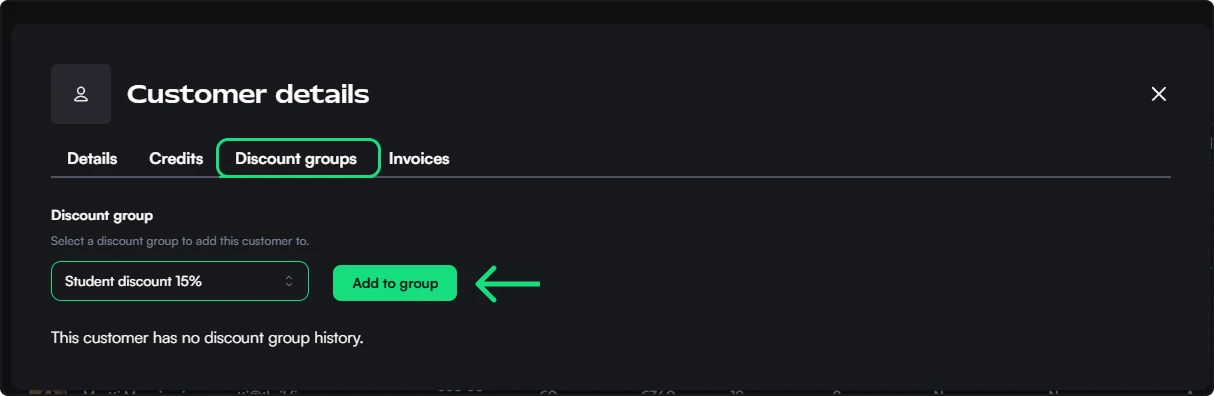
To remove a customer from a group, use the same tab.
Customers and customer lists
Your venue's CRM in Thril: a complete customer record with bookings, payments, credits and memberships, plus dynamic and static lists to segment and target the right people.
Emails
Compose, target, schedule, and measure marketing and service emails to your customers directly from Thril, with delivery and engagement statistics built in.